Add / Edit a Story
Stories are the core content of TFOL.
This is where you create the content that appears in your menus and grids.
Accessing Stories
You can add, edit, or delete stories from multiple locations:
From the Admin Menu
- Select Add Story to create a new story
- Select View Stories to see a list of existing stories
- From this list, you can:
- Edit a story
- Delete a story
- From this list, you can:
From the Member Grid
- Open a member profile
- Add or edit a story directly
- Edit stories directly from the grid view
👉 This allows you to manage content wherever you are working.
Creating or Editing a Story
When you open the Add/Edit Story page, you are defining both the content and visibility of your story.
Story Fields
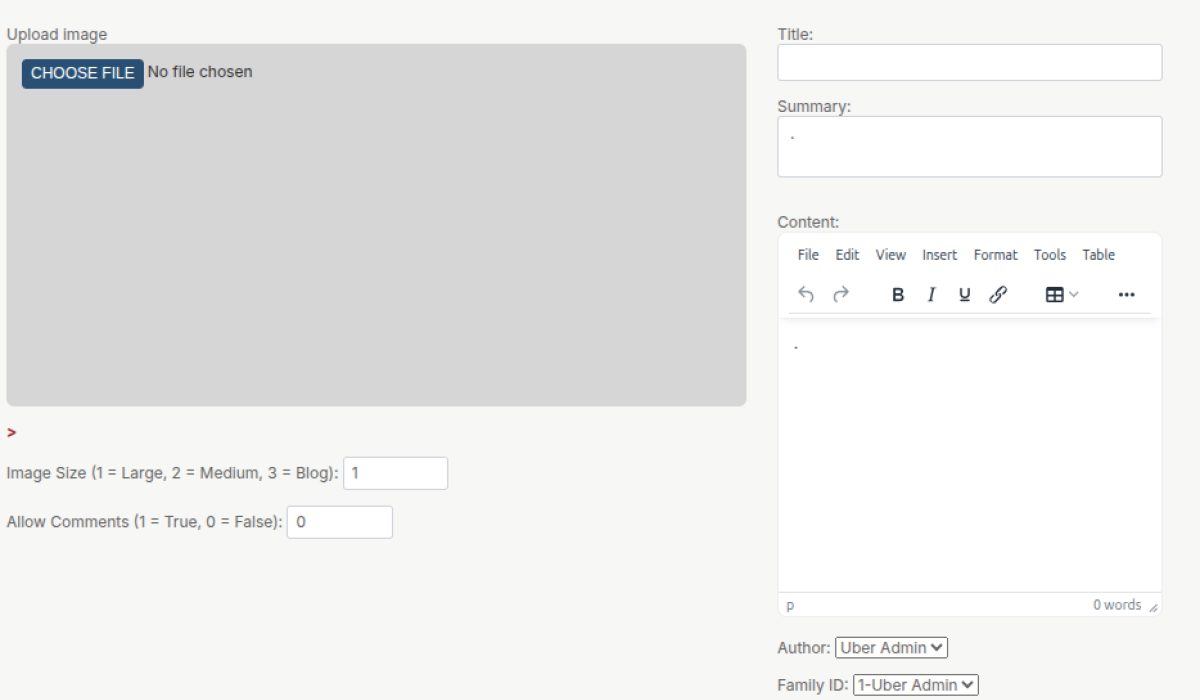
Image
Click Choose (or Browse) to select an image from your device.
- Navigate to the image and select it
- The filename will appear in the field
- The image will not display until the story is saved
Image Size
Controls how the image is displayed:
- 1 = Large
- 2 = Medium (Recommended)
- 3 = Blog
👉 Medium provides the best balance, especially on smartphones.
Allow Comments
Controls whether users can comment on the story:
- 1 = Enabled
- 0 = Disabled
- Registered guests can leave comments
- Unregistered guests cannot comment
Title ⚠️ (Important)
The main title of your story.
- Must be unique across the entire site
- Avoid common titles like “My Story”
Summary
A short description or sub-text.
- Appears on the grid tile
- Helps users quickly understand the story
- Does not need to be unique
Menu ⚠️ (Important)
Determines where your story will appear.
- Defaults to your first menu
- Be sure to select the correct menu
👉 Don’t worry—this can always be changed later.
Keyword
Used for the internal search feature (magnifying glass icon).
- Helps users find your story more easily
- Use relevant words or phrases
Public
Controls whether your story is visible to others.
- Unchecked (default) → Private story
- Only visible on your member grid
- Checked → Public story
- Visible to others in menus and grids
👉 You must actively check this box to make a story public.
(System Fields)
The following fields are automatically set and do not need to be changed:
- Author
- Family ID
Saving Your Story
Click Save to apply your changes.
Your story will:
- Appear in the selected menu
- Follow the menu’s display behavior
- Be visible based on your Public setting
Best Practices
- Use a clear, unique title
- Always verify the Menu selection
- Add a summary for better grid display
- Use keywords to improve searchability
- Use medium image size for best mobile viewing
- Double-check the Public setting before saving
Final Thought
Menus organize your content—but stories are what users actually experience.
Posted in resources by Uber Admin